







Hoff_Design
-
Posts
274 -
Joined
-
Last visited
Content Type
Profiles
Forums
Gallery
Everything posted by Hoff_Design
-

From the album: Library In A Small Space
-
 I wanted to make a realistic "old" book for the library...I made one in Chief X17 that was decent, but I wanted to try making one in Sketch-up, then apply colors to each area so I could apply the textures that I made for it earlier. So I made this model in Sketch up then imported into chief, then added the textures and rendered in X17. Super happy with the realism. I wanted old, so I selected an old one off my library shelf, but did not realize how old it actually is...this one was printed in 1818. That's back a bit! I took pictures of it with my phone from all angles, modified them in photoshop, then brought into Materialize to create normal, ambient occlusion and diffuse maps, then brought those into X17 and set them to stretch to fit. I followed a youtube tutorial to make the book, here is the link. https://www.youtube.com/watch?v=xfkjL2L7scU
 -
From the album: Library In A Small Space
-
I got off on a rabbit trail! I am genuinely impressed with your X17 workspace with the placement of all of the icons.
-
I can't help but marvel at your "iconic" workspace! Its like viewing a majestic art piece...
-
 Nice textures.
 -
 Needed to make a book... I used Chief X17 solids, but had to separate the back, front and sides so I could apply the texture to each surface
 -
 Rendered this one using the "tone mapping" selection of ACES. Much darker shadows.
 -
From the album: Library In A Small Space
-
From the album: Library In A Small Space
-
From the album: Library In A Small Space
-

From the album: Library In A Small Space
-

From the album: Library In A Small Space
-
...or go to camera specifications and change setting from automatic to "light set". The default Light Set will turn on all lights.... or you can create your own light sets and force them to be on.
-
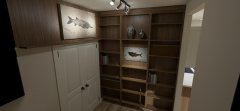 Used the remove exterior camera facing walls to capture this render.
 -
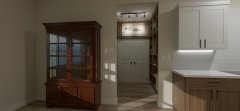 I modeled the cabinet to the left with the built in cabinet tools in X17. It matches the one they have in that location. It would be great to have a stain slider to control the amount of blended color we add to a texture...maybe there is a way? The only way I know at the moment is to take the texture into photoshop and reimport.
 -
 Pretty tight space to get a good render.
 -
 On the track light, I used a sphere and a couple of of cylinders. The part that is lit is set with the lighting white and is adding area light to the room (set at 2500) each. Then I added a directional spot light for each of the track lights which is lighting up the fossils. It worked. With the track lights I can point each of the lights where ever I want them using plan and elevation views.(Still have to adjust the lighting data in the lighting dialogue box though to adjust the angle of the spot lights)
 -
 Grabbed a vase from the library and copied it and resized them to different shapes, then added textures to them. The fossil slab has a corner broken off so I modeled a 3D solid with the missing corner then gave the edge a bevel around the front. The texture is set to stretch to fit. To get the wood for the shelves, I took a picture of the side of one of their existing cabinets and made a texture that matches what they have in their home.
 -
From the album: Library In A Small Space
-
From the album: Library In A Small Space
-
From the album: Library In A Small Space
-
From the album: Library In A Small Space
-
From the album: Library In A Small Space
-
 Note that you can add emissivity to anything in the room. Here I selected one of the deer and selected define material and applied an emissive value of 1000 to it and blended the color red with the texture. Notice the impact on the rest of the room from this one change!


